Implementing the UI Controller Class
In this chapter you will learn how to implement the class that manages the relationship between the host application, the user settings and the user interface.
When implementing a settings page for the plug-in user interface you need to cover the following scenarios:
- The user clicks the Reset to Defaults button, thereby restoring all control elements to their intended default settings.
- The user clicks OK, thereby applying (saving) the settings.
- After changing the control element settings, the user goes to another settings page, which should also save any changes to the form control elements.
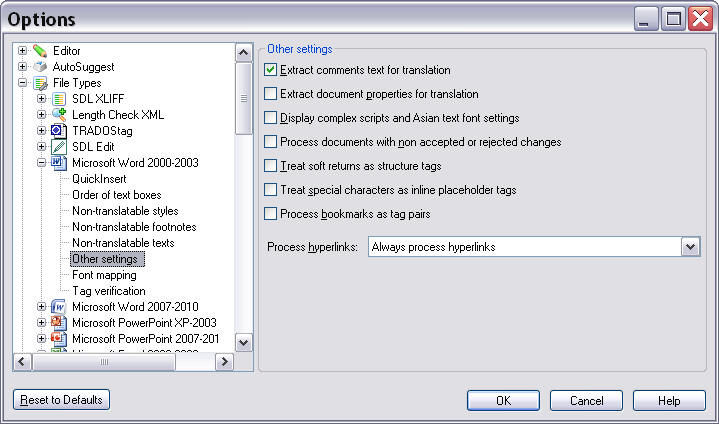
- The user clicks the Cancel button, any changes to the control settings should be discarded. A settings page does not implement its own OK, Cancel, Reset buttons, but will rely on the control elements that are provided by the dialog box of the framework, which is made possible through this class. Below you see an example of a settings page as it is implemented for one of the default file types in Trados Studio:
Add the Settings Page
Now you need to add another class, e.g. called SettingsPage.cs to your project. This class is used to manage the functions of the user control UI, e.g. it triggers the reset function of the UI when a user clicks the Reset button. It is this class that will be registered as a plug-in UI page in the File Type Component Builder (i.e. not the actual user control).
Reference the following namespace in this class:
- Sdl.FileTypeSupport.Framework.Core.Settings
Your SettingsPage class then needs be derived from the AbstractFileTypeSettingsPage< SettingsControlType, SettingsType> class providing the types of the settings and the UI control:
class SettingsPage : AbstractFileTypeSettingsPage<SettingsUI, UserSettings>
Declaring the Page as a Plug-In.
The Plugin Framework requires all plug-in pages to be marked with a C# attribute. The plugin framework will then generate a plug-in definition for the assembly based on these attributes which can then be used by other applications.
As we are creating a Filter Settings Page we will use the FileTypeSettingsPage attribute. This attribute requires a unique ID, which will be used to identify this plug-in page at runtime, a name, and a description. If the page needs be localised into other languages, the name and description should be key mappings to the related PluginResources.resx file in your assembly.
[FileTypeSettingsPage(Id="SimpleText_Settings", Name="Settings_Name", Description="Settings_Description")]
Implementing the Base Class
The FileTypeSettingsPage base class takes care of a lot of the plumbing required to make sure all the objects are loaded correctly and updated at the correct points. However, because we are not using data binding in our control, the UI must manually be told when settings have been changed. The two methods that make settings changes are ResetToDefaults and Refresh so we need to override them and make a call to our UpdateControl method on the UI to inform it that the underlying settings data has changed.
public override void ResetToDefaults()
{
    base.ResetToDefaults();
    Control.UpdateControl();
}
public override void Refresh()
{
    base.Refresh();
    Control.UpdateControl();
}
Add the file type settings page to the file type plug-in
To associate your sample file type plug-in with this file type settings page the following code was used in the class SimpleTextFilterComponentBuilder within the method BuildFileTypeInformation.
info.WinFormSettingsPageIds = new string[]
{
    "SimpleText_Settings",
    "QuickInserts_Settings",
};
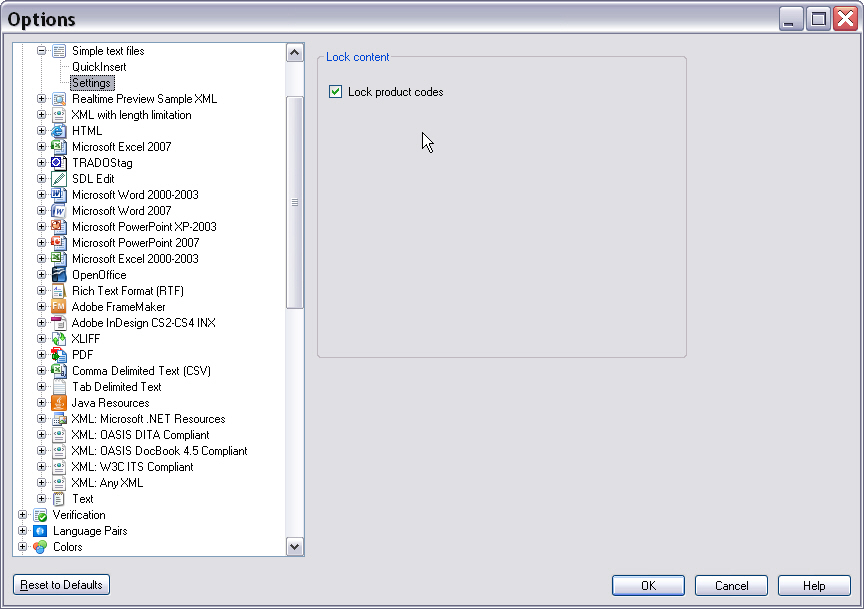
WinFormSettingsPageIds specifies the ids of the settings pages to be associated with a file type plug-in. Here we added SimpleText_Settings so that this file type settings page is associated with this file type plug-in. This code was added in an earlier chapter and so should not be added again.
After adding this file type settings page, the file type plug-in UI becomes available in the File Type Manager.
Putting it All Together
All put together, your user interface controller class should now look as shown below:
using Sdl.FileTypeSupport.Framework.Core.Settings;

namespace Sdk.FileTypeSupport.Samples.SimpleText.WinUI
{
    /// <summary>
    /// This class controls the plug-in user interface. It controls what happens, for example,
    /// when the user clicks the button in the user interface for resetting the control elements
    /// to their default values. This class is referenced in the file type definition. Without
    /// this reference in the SDLFILETPYE file, the plug-in user interface would not be available
    /// to the end user.
    /// </summary>
    #region "SettingsPagePlugin"
    [FileTypeSettingsPage(Id="SimpleText_Settings", Name="Settings_Name", Description="Settings_Description")]
    #endregion
    #region "ClassDeclaration"
    class SettingsPage : AbstractFileTypeSettingsPage<SettingsUI, UserSettings>
    #endregion
    {
        /// <summary>
        /// Triggered, when the user clicks the button Reset to Defaults button in
        /// Trados Studio. Restores the default check box state, which should
        /// be Checked (i.e. product code strings should be locked).
        /// </summary>
        #region "ResetToDefaults"
        public override void ResetToDefaults()
        {
            base.ResetToDefaults();
            Control.UpdateControl();
        }
        #endregion

        /// <summary>
        /// Triggered when the user raises the plug-in UI, whose controls (in this case the check box
        /// for locking product code strings) will then be set according to the values stored in
        /// the settings bundle.
        /// </summary>
        /// <param name="settingsBundle"></param>
        #region "Refresh"
        public override void Refresh()
        {
            base.Refresh();
            Control.UpdateControl();
        }
        #endregion
    }
}
Note
This content may be out-of-date. To check the latest information on this topic, inspect the libraries using the Visual Studio Object Browser.