Create a New Project
Learn how to properly set up a project for developing a verification plug-in that works on the bilingual (SDLXliff) file format.
Create the Project
Launch Microsoft Visual Studio 2022 and create a new Trados Studio Plug-in Project. Give it an appropriate name, such as Sdl.Sdk.FileTypeSupport.Samples.WordArtVerifier.
For instructions on creating a Trados Studio Plug-in Project, see the Building a Plug-in article in the Getting Started section.
A Trados Studio Plug-in Project produces a Plug-in Package (*.sdlplugin). You must manually deploy or copy this package to the Trados Studio Plug-in Packages directory so that Trados Studio can use the plug-in. For deployment instructions, see the Plug-in Deployment article in the Getting Started section.
Add the Required References
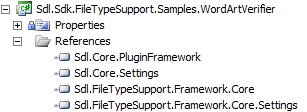
Add references from the File Type Support Framework APIs. These references are contained in the following assemblies:
- Sdl.FileTypeSupport.Framework.Core.dll — The main reference to the File Type Support Framework API
- Sdl.FileTypeSupport.Framework.Core.Settings.dll
Add references from the Core APIs:
- Sdl.Core.Settings.dll
- Sdl.Core.PluginFramework.dll
By default, these files are in the Trados Studio installation folder (for example, C:\Program Files\Trados\Trados Studio\Studio19). Set the Copy Local property for these references to True.
Note
This content may be out-of-date. To check the latest information on this topic, inspect the libraries using the Visual Studio Object Browser.